

Assessment tooling spent years trying to keep AI out of the environment. Lock the editor down, watch for paste events, treat any outside help as a failure state. That made sense while AI was an edge case.
It is not an edge case now. Engineers direct an AI coding tool through a normal working day, so the useful question in an assessment has moved with them. Blocking those tools measures a version of the job that no longer exists. Allowing them with no record leaves you guessing about who actually did the work.
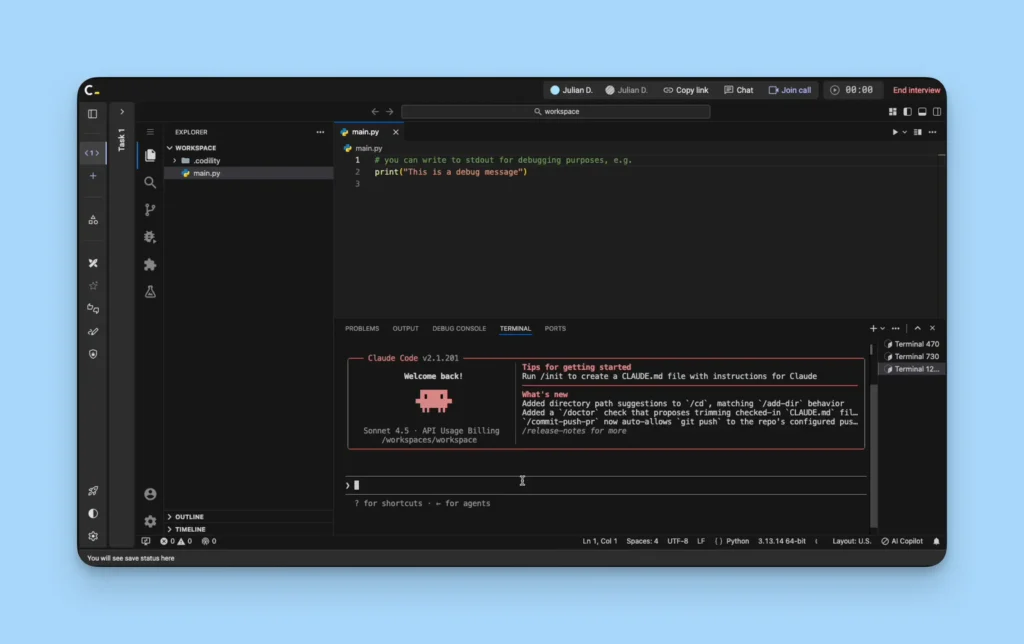
This update resolves that in one direction. Claude Code now runs inside the assessment, across Screen, Interview and Skills Intelligence. A candidate works with it, and everything they asked, everything it answered, and what they did with the answer is saved in their report. Replay covers the whole session, so a reviewer can watch it unfold rather than judging a finished result on its own. You decide whether it runs, one assessment at a time.
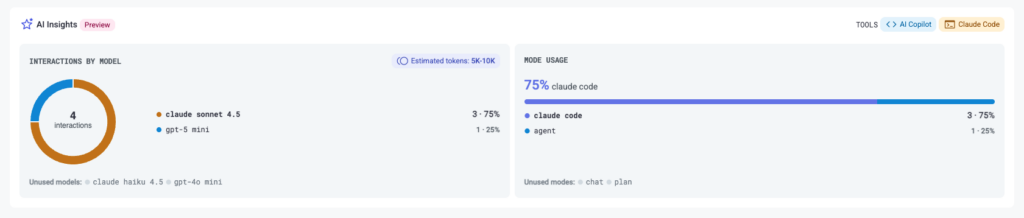
Alongside it, the release a lot of you asked for. Every task where a candidate used AI now carries a usage summary: which models they used, how many times they went back and forth, and how much they used in total. A full transcript is the honest record, and reading one for every candidate was never going to happen. Scan the summary first, and open the transcript only when something stands out. It covers work done with the AI Copilot as well as with Claude Code.
Two more things opened up to every account. AI for Business takes assessment beyond engineering, to the roles that never touch a codebase but are now asked for AI skills anyway. And cheating apps detection moved from a limited group to every account, surfacing the class of tool that sits invisibly over a candidate’s screen and never appears in a screen share.
The rest of the past month’s releases are below.
Claude Code, and the AI Copilot, reach Preview for every account
Open previewClaude Code, Anthropic’s command line coding tool, now runs inside the Codility assessment environment. A candidate opens the terminal in the coding environment and starts it there. What matters for a reviewer is what survives the session, and the whole exchange does.
Why It Matters
- The conversation is the evidence. Everything the candidate asked, everything the tool answered, and what they did with the answer is saved in their report as reviewable AI activity. A reviewer can play the whole session back rather than judging a finished result on its own.
- You choose, one assessment at a time. Claude Code and the AI Copilot are switched on or off per interview or assessment, in the AI Assistant settings you already use. An assessment either allows the tool or it does not, and either way the record shows what happened.
- Everyone in a live interview sees it as it happens. Interviewers and candidates can both work with the tool, and both are told when it is switched on, once while the environment loads and again when it is ready.
What’s New
- Claude Code available across Interview, Screen and Skills Intelligence
- Claude Code interactions saved in the candidate report, with full Replay
- Claude Code switched on or off when you create an interview or an assessment, in the same AI Assistant settings
- Candidate and interviewer notices while the environment loads and once it is ready
- The AI Copilot and Claude Code both open to every customer
Open preview for all customers, across Interview, Screen and Skills Intelligence. The AI Copilot and Claude Code both start switched off in your Account Settings, because not every account permits AI tooling on the platform, and an admin turns them on there.
AI usage insights in every candidate report
LiveOne of the most requested items on this month’s list. A transcript is the complete record of how a candidate worked with AI, and complete records take time to read, which left reviewers choosing between reading everything and skipping it. Every task where a candidate used AI now carries a usage summary, so you can see the shape of the interaction first and decide from there whether to read all of it.
Why It Matters
- A scannable first pass: which models the candidate used, how many interactions they had with the assistant, and the token count for that task, gathered in one place.
- Not tied to one tool. The summary appears wherever a candidate used AI, whether that was the AI Copilot or Claude Code, so reviewers read the same format either way.
- The transcript is still there. The summary is a way into the record rather than a replacement for it, so anything that looks worth checking opens in full.
What’s New
- Per-task AI usage summary in Screen, Interview and Skills Intelligence reports
- Models used, interaction count and token count for each task where AI was used
- Covers the AI Copilot and Claude Code
Preview, alongside the AI Copilot and Claude Code.
AI for Business
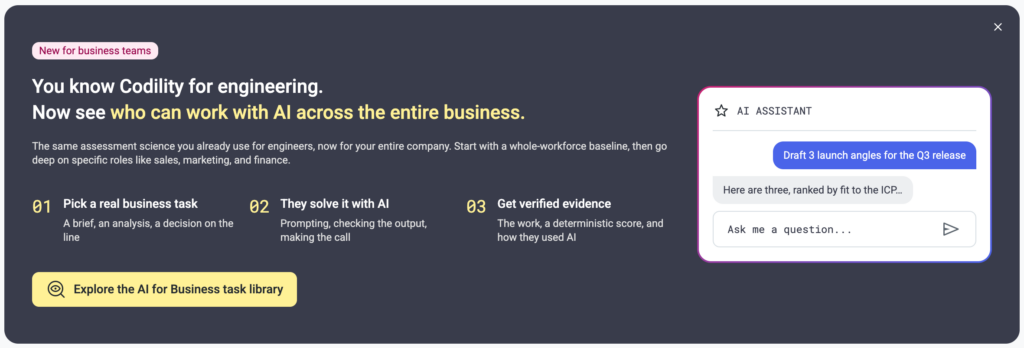
Open previewEvery Codility assessment ran through a coding lens until recently, which kept business and non-technical roles out of reach, along with the AI-readiness skills every team is now trying to measure. AI for Business reached Preview for every account in July, and the work since its earlier limited release went into the candidate experience. Early feedback was that the tasks landed but everything around them still felt built for engineers. That is fixed from the invite email through to the report.
Why It Matters
- Built for candidates who do not code. The task runs in a simple writing editor instead of a coding environment, and the candidate submits a response rather than a solution. Invite emails and intro pages no longer describe a technical assessment, and the assistant no longer introduces itself as a coding assistant.
- The same answer always gets the same score. Marking runs against a prepared answer key rather than an AI forming its own judgment, which is what makes a business assessment defensible if anyone questions the result. The scores feed the same skills data as the rest of the library.
- Quick to put together. Tasks carry a Business Scenario tag and filter by job role and skill, so building a business assessment takes a few clicks.
What’s New
- All 50+ validated business tasks included in every plan
- A Business tab in the Task Library, plus a homepage banner
- Rewritten candidate instructions, a new example task, a guided tour, and an intro-page set of frequently asked questions
- Business Scenario tagging, filterable by job role and skill
Open preview across Screen and Skills Intelligence, included in your plan. Find the tasks in the Business tab of the Task Library. A support article covers setup.
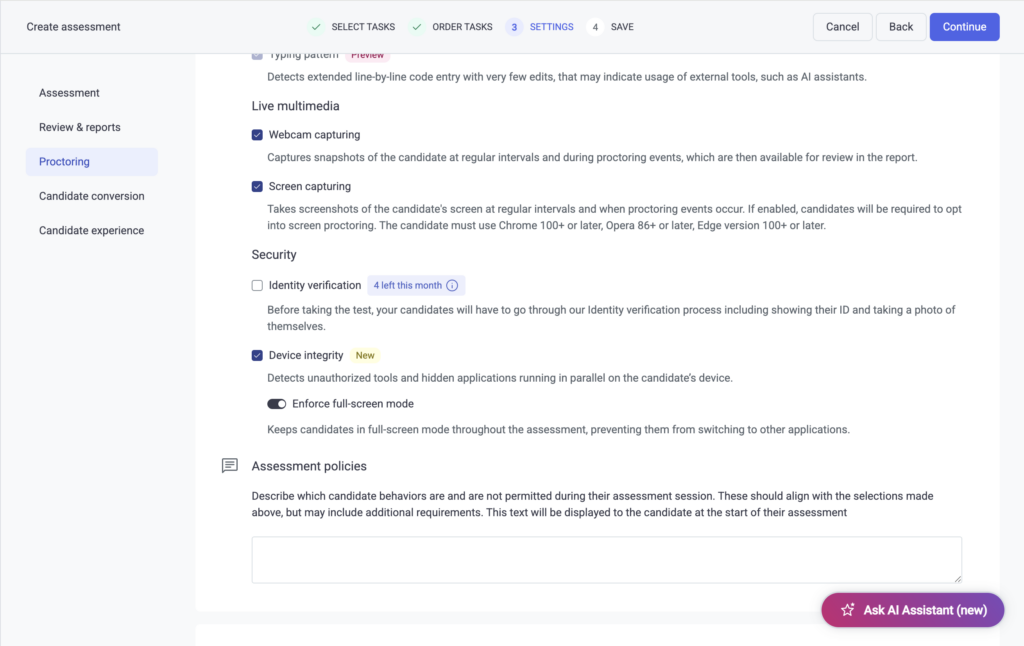
Cheating apps detection, and forced full screen, in the Desktop App
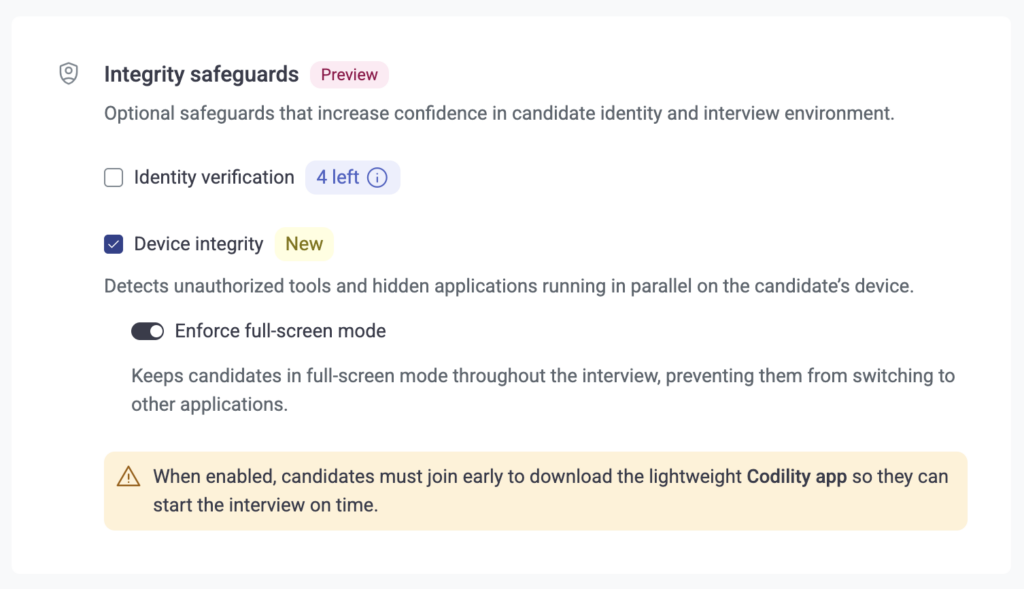
Open previewA class of tool sits invisibly on top of a candidate’s screen during an assessment and feeds them answers. It does not appear in a screen share or a session recording, so from the reviewer’s side the session looks entirely normal. The Codility Desktop App is designed to surface those hidden layers, and this month it moved from a limited group to Preview for every account. Forced full screen arrived in the same app in July, holding the candidate session in full screen with system controls disabled and releasing it when the assessment is submitted or the interview ends.
Why It Matters
- The gap it closes is one you cannot see. An invisible overlay leaves no trace in the artifacts a reviewer normally has. Surfacing it turns an unknown into a signal a person can act on, as one control among the layered set rather than a guarantee on its own.
- Fewer routes out of the session. Holding full screen with system controls disabled is designed to make reaching another application during an assessment harder.
- Candidates know the rules up front. Information banners on the Screen and interview intro pages explain that full screen applies before the session starts.
- You choose where it applies. The full screen setting is available in default assessment settings, in assessment settings, and on the interview creation form.
What’s New
- Detection of invisible overlay applications open to every account, up from a limited group
- Forced full screen setting for assessments and interviews
- Full screen maintained for the whole session, released on submit or on leaving the interview
- Candidate-facing notice on Screen and interview intro pages
Open preview for every account, through the Codility Desktop App.
VS Code in Screen and Skills Intelligence
Open previewVS Code is the code editor most professional engineers work in every day, and it has been available in Codility’s live interviews for a while. Bringing it to assessments candidates take in their own time meant the report had to be as complete as the environment. That work landed in July, and VS Code in Screen and Skills Intelligence is now open to every account.
Why It Matters
- The report tells you the whole story. A code quality score sits in the task details, and the moments worth a second look, copying and pasting, switching tabs, and time spent away from the page, are marked on a timeline. Click any one of them to jump straight to that moment.
- The download matches what you see on screen. The PDF is built from the same report, and includes the candidate’s work, the environment they worked in, an overview and a table of contents.
- Reviewing work is back to normal. Copy and test a candidate’s solution yourself, add your own test cases, and open the test case detail.
- The handoff carries the real work. When you create an interview from a Screen result, the candidate’s actual solution comes with it, so nobody starts from the blank starting file.
What’s New
- VS Code tasks available in Screen and Skills Intelligence for every account
- Code Health scores and clickable behavioral signals in VS Code task reports
- Rebuilt PDF report covering VS Code tasks
- Screen-to-Interview keeps the candidate’s VS Code solution
- VS Code tasks usable with the task randomizer
- VS Code tasks built into the Screen assessment creation flow
- Security hardening and scale work on the isolated environment platform, readied for Screen volumes
Open preview across Screen and Skills Intelligence.
Job Role Profiles in Skills Intelligence
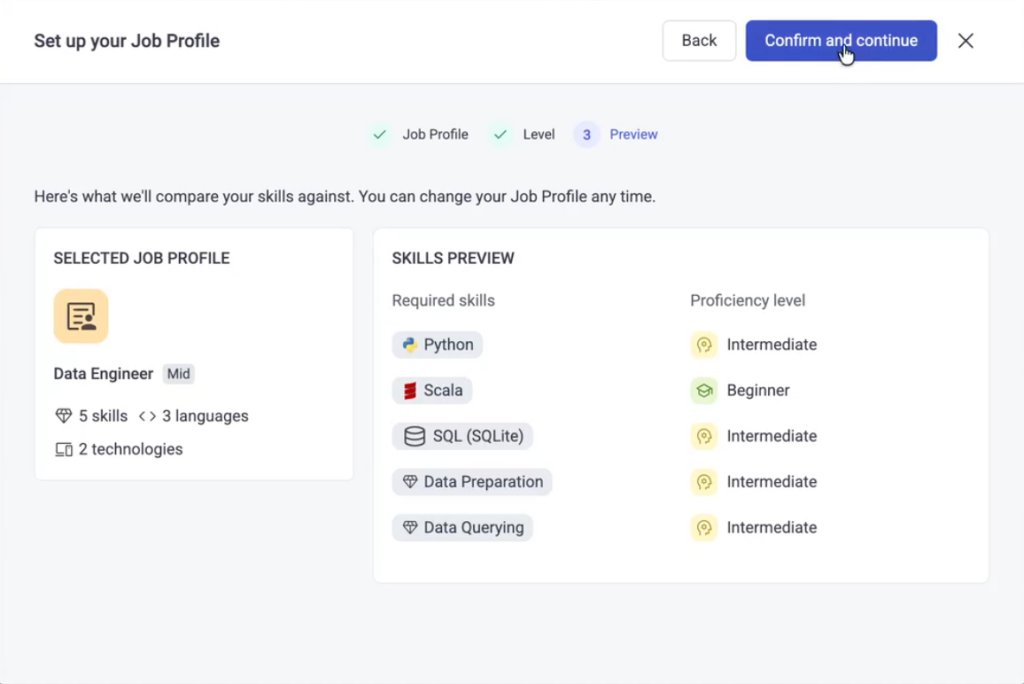
Closed previewDeciding whether someone is ready for the next level, or which gap to spend the training budget on, usually comes down to a manager’s rating and the person’s own self-assessment. Both inflate, and neither travels across teams, so the same rating means different things under two different managers. Job Role Profiles adds a role and a seniority level to an employee, then reads their tested skill level against what that role expects.
Why It Matters
- Two decisions become evidence-based: who is ready for the next level, and where the training budget actually needs to go. Each skill, language and technology shows as a gap, on target, or above, based on what someone scored rather than what they said about themselves.
- Both sides see the same view. A manager reads it from the employee profile in Insights, an admin from the Skills Users table, and an employee sees their own from their dashboard.
- Low effort to start. A starter catalog of role profiles is available in Settings, and employees can self-assign a role through a first-time wizard.
What’s New
- Job role and seniority level assignable to an employee
- Gap, on-target and above reading against role expectations
- Starter catalog of role profiles in Settings
- Employee self-assignment wizard
Preview, using the built-in role profile catalog. If interested, email [email protected] to learn more.
Save and reuse interview environments as library tasks
Open previewSetting up an interview environment is work, and until recently that work was thrown away at the end of the session. Saving an environment as a library task moved to Preview for every US and EU account in July, and the rough edges from the earlier preview are gone.
Why It Matters
- The setup arrives ready to use. Anything installed as part of the original environment is kept, so a reused setup works the way it did the first time rather than needing rebuilding.
- The library reads correctly. Saved interview tasks are tagged Interview and show N/A for score, with a note explaining they are not marked, instead of showing assessment figures that never applied to them.
- Nothing was lost in the move. Environments saved during the earlier preview are still there.
What’s New
- Installed libraries carried into saved environments
- Correct Interview tag and N/A score on saved interview tasks
- The VS Code filter in the company library returns saved interview tasks
Live for all US and EU accounts
The Excalidraw whiteboard
LiveThe Excalidraw whiteboard has completed its preview and is now openly available in Interview, rolled out to all customers.
Why It Matters
- System design gets assessed rather than described. Sketch architecture live with the candidate in the same session as the code, instead of asking them to talk you through it.
- The drawing is part of the record. The whiteboard is saved with the session, so a reviewer who was not in the room can still see what was drawn.
What’s New
- Excalidraw whiteboarding generally available in Interview
- Rolled out to all customers following the preview
- Whiteboard content saved with the session
Live for all customers, in Interview.
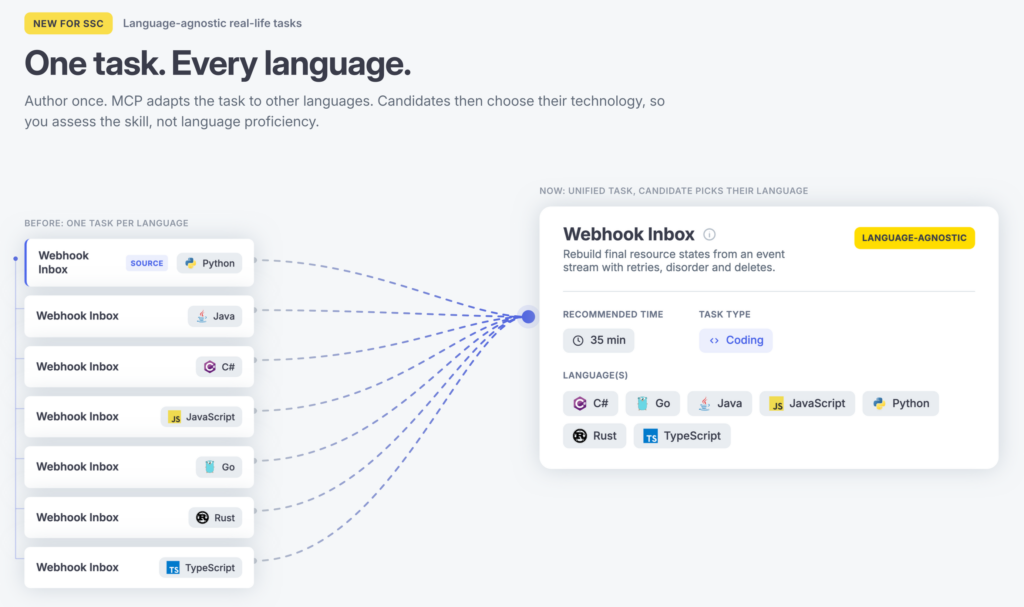
Language-agnostic custom tasks
LiveA custom real-life task used to carry its programming language with it. To test the same problem in Python and in Go, you built and maintained two separate tasks, so teams who wanted to hire on engineering judgment ended up working around the library instead of with it. A custom task can now accept whichever language the candidate chooses, and an existing task can be translated into other languages on request. Publishing a variant is a single action too, with the base task picked on the publish screen.
Why It Matters
- Hire for the engineer rather than the stack. One task accepts whichever language a candidate is strongest in, and measures the same skills either way.
- Less content to keep up to date. One task replaces a set of near-duplicates, and separate tasks covering the same ground in different technologies can be combined into one.
- Variants in one step. When you publish, you can pick an existing task as the base and the merge happens as part of that same action. The button reads Update variant, so it is clear you are merging rather than creating something new.
What’s New
- Language-agnostic custom real-life tasks
- Translation of an existing task into other languages on request
- Base-task picker on the publish screen, with a single publish action for variants
Live for all customers.
Weighted scoring works with the task randomizer
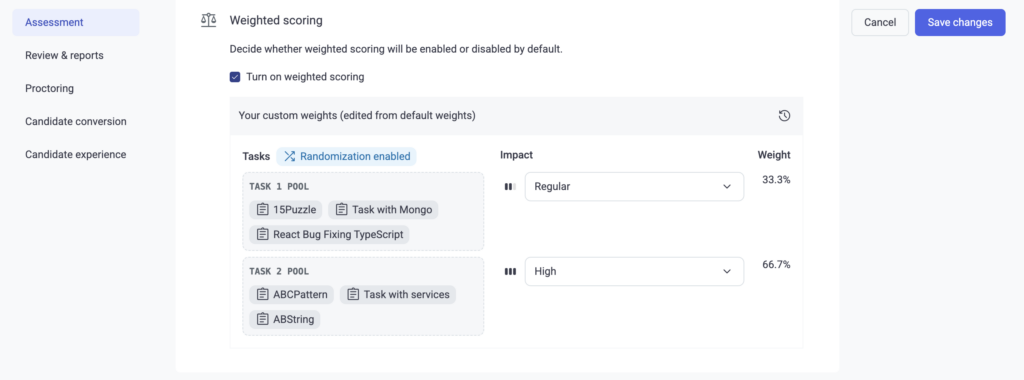
LiveIf an assessment gave different candidates different tasks at random, weighting some of those tasks more heavily than others used to throw an error, so you had to pick one feature or the other. That limitation is gone.
Why It Matters
- No more choosing between the two. Weighting and random task selection can now run on the same assessment, which they could not before.
- It works on assessments you have already built. Weighting applies to assessments already using random selection, rather than only to new ones.
- It matters most at volume. High-volume hiring often needs a different task set per candidate and a weighting that reflects what the role actually values.
What’s New
- Weighted scoring applies to assessments already using randomised tasks
- Available in the assessment creation flow and on the assessment settings page
- The error that blocked the combination is gone
Live for accounts with weighted scoring and the task randomizer switched on.
Fuller filtering on the candidates page
LiveFiltering on the candidates page had fewer options than the Candidates tab inside a test, so where you started changed what you could narrow down. Both now work the same way.
Why It Matters
- One filtering model in both places. You do not relearn the interface depending on which page you came in through.
- Fewer dead ends. The extra filter fields that were only available inside a test are on the candidates page too.
What’s New
- Candidates page filtering matches the Candidates tab in test details
- The same filter logic and the same layout in both places
- Additional filter fields available through a modal
Live for all customers.
Images in your own uploaded tasks
LiveImages can now be added to custom upload tasks straight from the in-app editor.u003cbru003e
Why It Matters
- Some problems need a picture. A diagram, a screenshot or a chart is often far clearer than a paragraph describing one, and task content can now carry it.
- Authoring stays in one place. Images go in from the in-app editor, with no workaround and no separate hosting step.
What’s New
- Images can be added to custom upload tasks
- Added directly in the in-app editor
Live for all customers.
New tasks in the library
LiveTwo batches of library content this month, across the Next Gen VS Code environment, the fundamental coding library and the Enterprise SQL library.
Why It Matters
- Variant tasks suit high-volume hiring. Several of this month’s additions cover the same subject and measure the same skills, worded differently enough that an answer to one is no use on another, which makes them a good fit for campus recruitment and any stage running large numbers of candidates.
- Agentic work is in the library now. The code migration task is realistically only completable in the time given with an AI tool doing real work alongside the candidate, which is what an assessment built for current engineering practice looks like.
- Results feed the same skills data. Every new task ships with skills tagging and test-case skills tagging, so it reports the same way as the rest of the library.
What’s New
- Two Next Gen VS Code tasks: an agentic task porting 25 legacy C++, C# and Rust command line utilities to Python while preserving identical behavior, and a data science task training and evaluating an image classifier inside a four-minute budget
- A set of variant tasks for the fundamental coding library, covering budget and weight optimization over a product catalog, plus a digit-fragment algorithmic task
- Four SQL variant tasks in the Enterprise library, covering departmental and per-location cost aggregation
- The first two tasks built on a new video-description workflow, both algorithmic
Live now, available according to your packages. Skills tagging and test-case skills tagging are included with all of them.