

Claude Code, in the terminal and on the record_
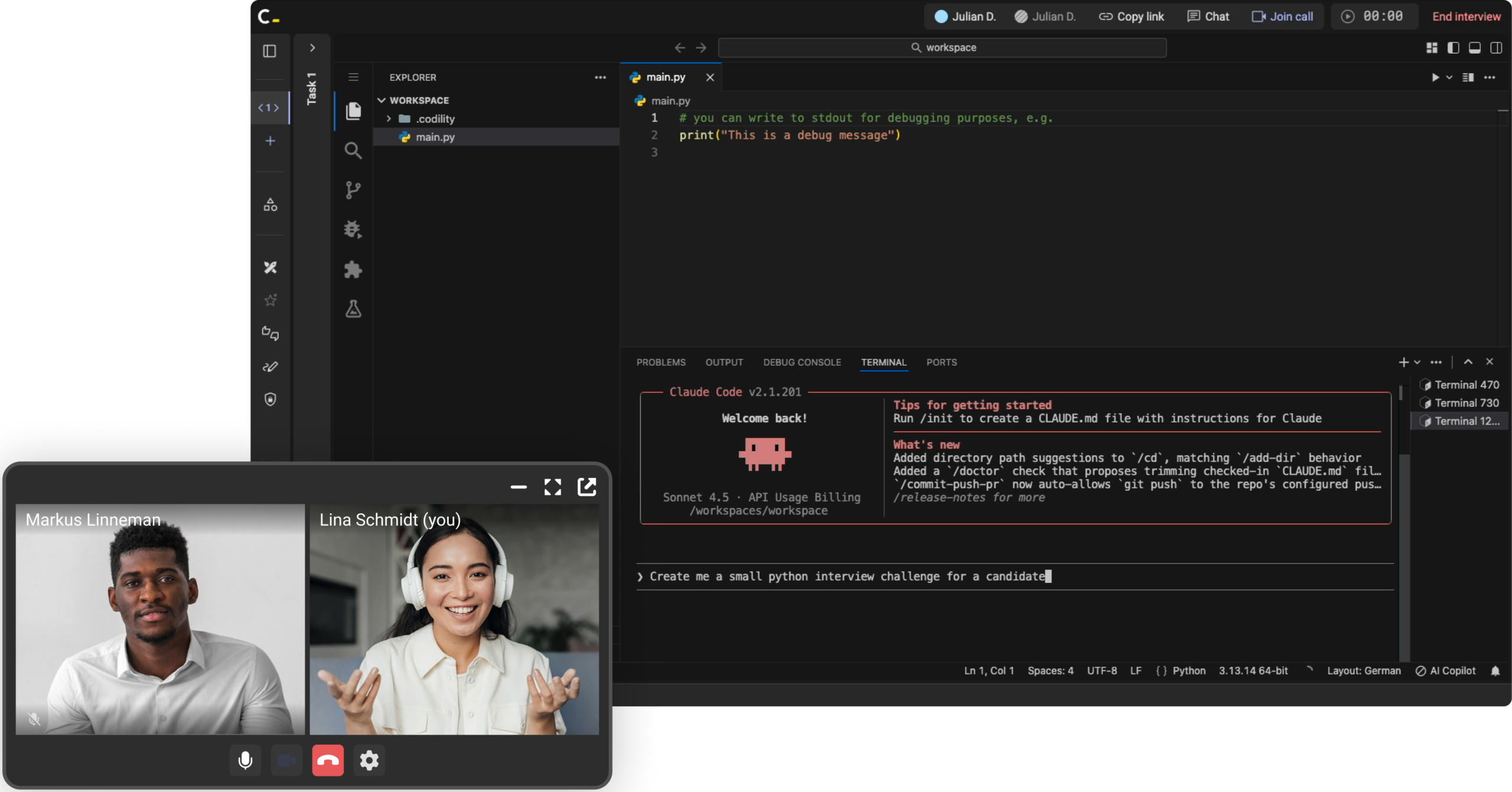
Every engineer you hire already builds with AI. An assessment that shuts it out tests for a job that no longer exists. Claude Code runs directly in the Codility terminal, and every prompt, edit and correction lands on the candidate report, so you can see how someone prompts, corrects, and ships with an agent.
- Across all three products: the same agent in the same real environment, in Screen, Interview and Skills Intelligence.
- On the record: the whole interaction saves to the candidate report and is covered by Replay, so the prompting is reviewable afterwards.
- Zero setup: preinstalled and preconfigured, routed through Codility’s own infrastructure. No API keys, no logins, no onboarding dialogs.
Why assessments need this now
Engineering work has moved. The people you hire spend their day directing an AI coding agent. An assessment that bans the agent measures a skill the role no longer asks for.
The unaided test is the wrong test
Asking a candidate to code without AI shows you how they worked two years ago. It says little about how they will build on your team next week.
Working with an agent is the skill
The signal now is in the prompting: where a candidate trusts the agent, where they push back, and how they turn a rough first answer into code that ships. That was invisible before.
Setup does not belong mid-assessment
Configuring an agent by hand means API keys, model choice, and onboarding prompts. None of that fits inside a timed session, so most teams simply went without.
How it works
Nothing to install and nothing to connect. Once an account admin turns it on, Claude Code is ready in the terminal of every assessment.
Open the terminal, type claude
In the VS Code environment the candidate opens the terminal and runs one command. Claude Code spins up. The trust and onboarding dialogs are pre-accepted, so there is no login and no API key.
Work the problem with the agent
The candidate prompts Claude Code to explore, write, or refactor. In an interview the session is shared, so the interviewer sees every prompt and response as it happens and both sides can interact.
Hosted by Codility
Claude Code comes preconfigured and routed through Codility’s own AI infrastructure. There are no API keys to manage and nothing for anyone to connect.
What you get to see
Assessments reflect how engineers actually work today: alongside an AI coding agent, in a real environment, with the whole approach open to review.
Assess AI-assisted coding
See how a candidate collaborates with an agentic coding tool, not only how they code alone. The prompting, the corrections, and the judgement all become observable.
One shared, live session in Interview
Interviewer and candidate share a single Claude Code session, synchronised in real time. No screen-share guesswork about what the agent was asked or what it returned.
Zero setup, zero friction
Preinstalled and preconfigured. No API keys, logins, onboarding, or model choice for anyone. The session starts where the interview needs it to.
Codility-hosted
Claude Code runs on Codility’s own AI infrastructure, so there are no candidate credentials or keys in play.
Every session on the record
The prompts, the edits, and the corrections save to the candidate report with Replay support, so reviewers see how the work was done and not only what was submitted.
Real environment, real work
Claude Code sits inside the same real VS Code environment, alongside the terminal, dependencies, and sidecar services a role actually uses.
What is in the Preview
Claude Code is in Preview and open to every customer. It is off in Account Settings by default, because many accounts do not permit AI tooling, so an account admin turns it on. Control sits at two levels: one account-wide AI switch, and the per-assessment AI Assistant setting.
Preview. Open to every customer, off in Account Settings by default.
Screen, Interview and Skills Intelligence. The same agent in all three.
Claude only. Other providers are not part of this Preview.
Shared live in Interview. Async in Screen and Skills Intelligence.
None. Preinstalled and preconfigured, no API keys or candidate onboarding.
Enabled or disabled per interview or assessment, in the same AI Assistant settings.
One AI switch above every individual AI setting. While it is off, every AI feature is off across the account, whatever the individual settings say, and a feature released later cannot arrive switched on underneath it.
The whole interaction saves to the candidate report and is covered by Replay, so the prompting is reviewable after the session rather than visible only in the moment.
Codility’s own AI infrastructure. No candidate credentials and no API keys in play.
The account-wide switch lives in Account Settings under Feature access, in the Global features group. Changing it is an admin action, and it already applies to every existing account, so there is nothing to set up first.
AI can write code now. Codility helps you hire the engineers who can build with it.